Create API Key
The first step is to create an API Key. Follow the steps below to create an API Key and learn how to edit and change permission for individual API Key.
Create an API Key
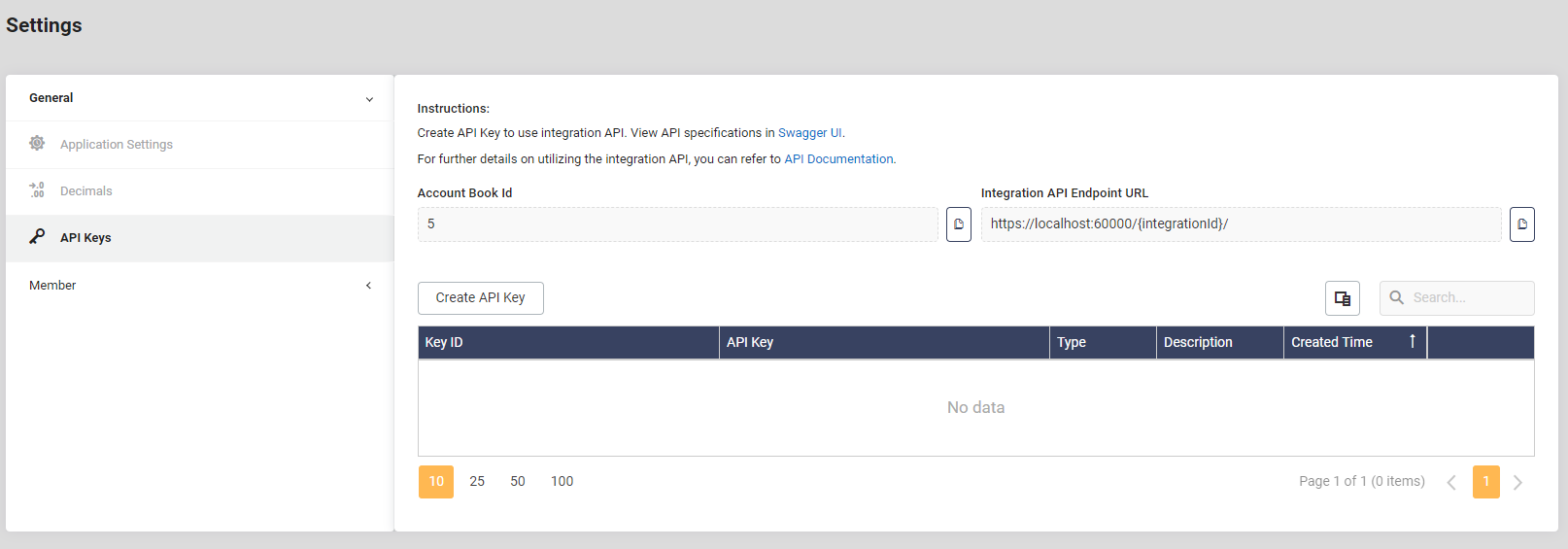
- Navigate to the "Settings" page within the OneRewards web application.
- Select the "API Keys" tab.
- Click on the "Create API Key" button.
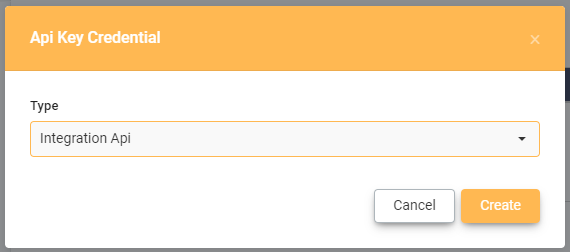
- A dialog will appear, click "Create" to generate an API Key specifically for integration.
- The
Key IDandAPI Keyfields are automatically generated upon key creation. TheAPI Keystring is concealed by default but can be revealed for viewing.
Exercise caution with your API Key string. If the API Key string is inadvertently exposed, consider regenerating it for security reasons.
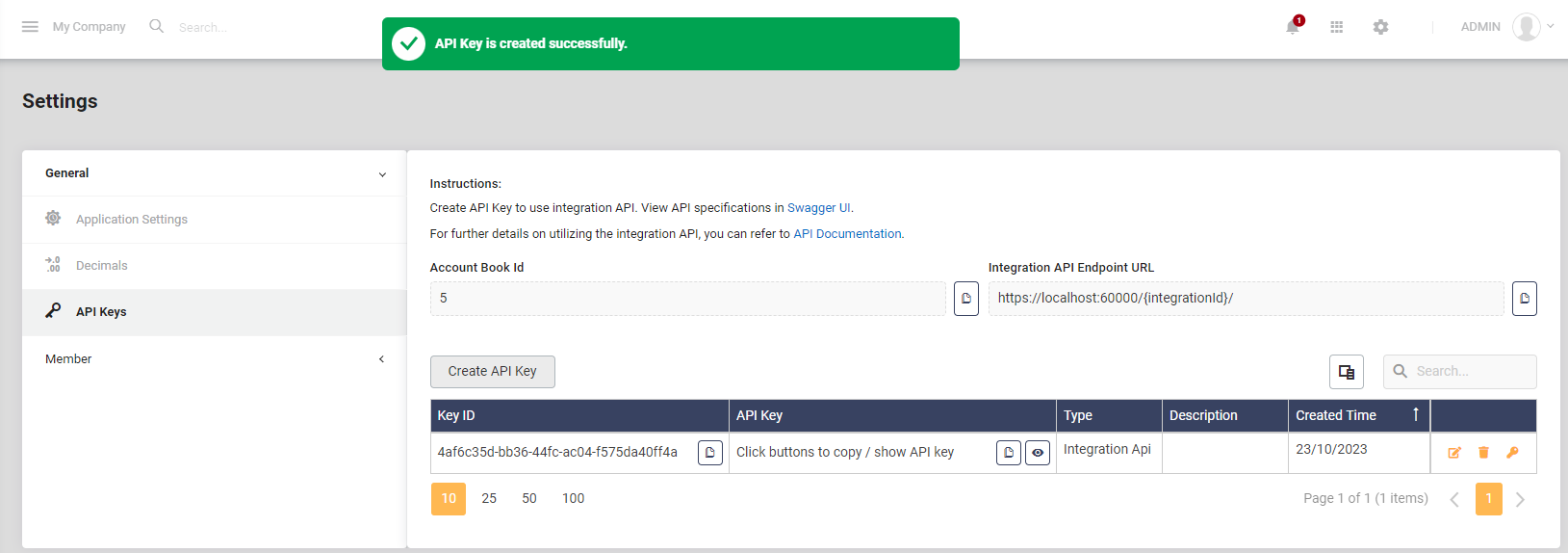
- Once the API Key is successfully created, you will see an options menu on the right side of each API Key row. This menu allows you to perform actions such as editing, deleting, and re-generating the API Key.
Edit an API Key
You can edit the configuration of an API Key by following these steps:
- Click the edit button for the desired API Key.
- This action opens a dialog where you can modify the API Key settings.
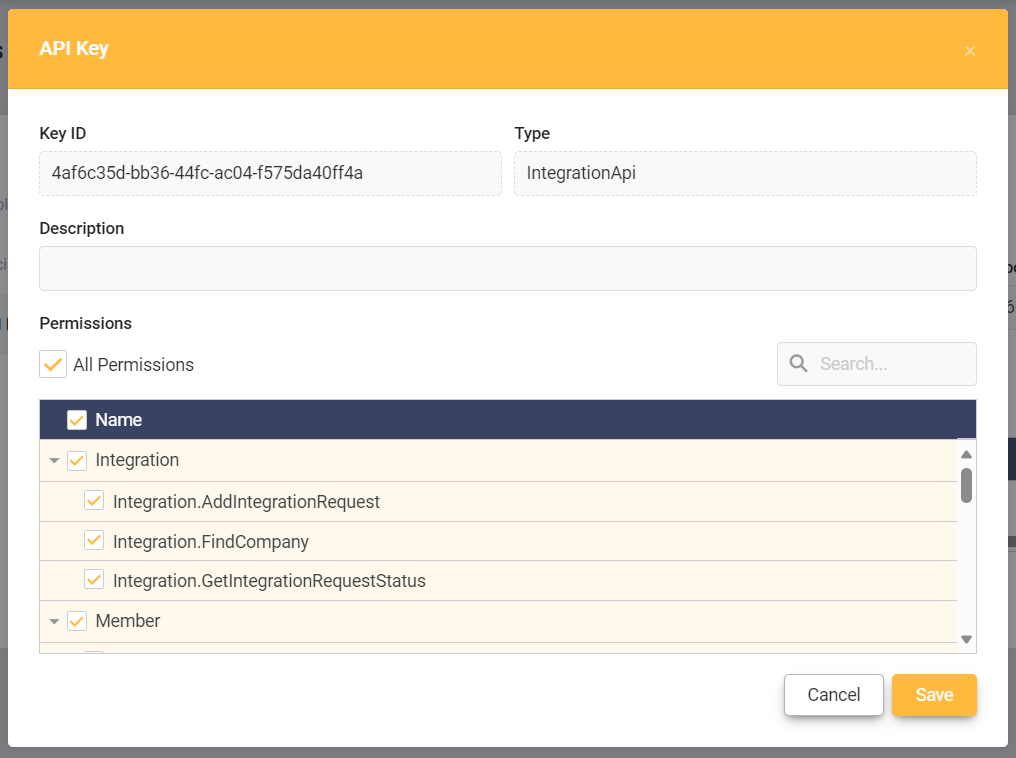
The "Description" field is intended to provide a meaningful label to help you manage your API Keys effectively. We recommend specifying the usage context of the API Key in this field.
Under the "Permissions" section, you can define which API methods the generated API Key should have access to.
By default, the "Permissions" are set to "All Permissions" upon key creation. If you want to restrict the permissions of an API Key, make sure to adjust the "Permissions" values after key creation.